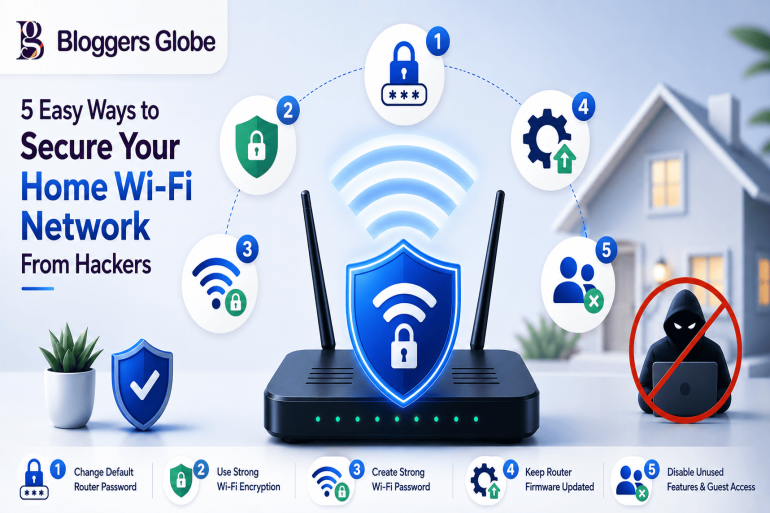
5 Easy Ways to Secure Your Home Wi-Fi Network From Hackers
In today's connected world, your home Wi-Fi network is the gateway to almost everything you do online. From online banking and shopping to video streaming and smart home devices, nearly every internet activity depends on your Wi-Fi connection.
Unfortunately, hackers often target poorly secured home networks because they can be easy entry points for stealing personal information, spying on internet activity, or infecting devices with malware.
The good news is that protecting your Wi-Fi network doesn't require advanced technical skills. A few simple changes can significantly improve your security and help keep hackers out. If you use Windows 11 on your computer, you can also explore these Windows 11 tips and tricks to make better use of your PC's built-in features.
Table of Contents
Why Wi-Fi Security Matters
Many people set up their internet router once and never think about it again. However, cybercriminals constantly look for vulnerable networks. If your Wi-Fi security is weak, hackers may be able to:
-
Access personal files and sensitive information
-
Monitor your online activity
-
Use your internet connection for illegal activities
-
Infect connected devices with malware
-
Take control of smart home devices
A secure network protects not only your computers and smartphones but also smart TVs, cameras, speakers, and other connected devices.
1. Change Your Default Router Password
One of the most common mistakes homeowners make is keeping the router's default administrator password.
Most routers come with default login credentials that are widely available online. If a hacker gains access to your network, they may easily log in to your router and change settings or monitor traffic.
What to Do
-
Log in to your router's admin panel.
-
Find the administrator password settings.
-
Replace the default password with a strong, unique password.
Tips for a Strong Password
Use:
-
At least 12–16 characters
-
Uppercase and lowercase letters
-
Numbers
-
Special characters
Avoid:
-
Birthdays
-
Names
-
Simple combinations like "password123"
Changing the admin password is one of the quickest ways to strengthen your network security.
2. Use Strong Wi-Fi Encryption
Encryption protects the data traveling between your devices and your router.
Older security standards such as WEP and WPA are outdated and can be cracked relatively easily by attackers.
Recommended Security Settings
When checking your router settings, use:
-
WPA3 (best option)
-
WPA2-AES (if WPA3 is unavailable)
Avoid:
-
WEP
-
WPA
-
Mixed security modes when possible
How to Check
-
Open your router settings.
-
Navigate to Wireless Security.
-
Verify that WPA3 or WPA2-AES is enabled.
Strong encryption makes it much harder for hackers to intercept your data.
3. Create a Strong and Unique Wi-Fi Password
Your Wi-Fi password is the first line of defense against unauthorized access.
A weak password can be guessed using automated tools within minutes.
Best Practices
Create a password that:
-
Is at least 15 characters long
-
Contains letters, numbers, and symbols
-
Is unique to your Wi-Fi network
-
Is not reused from other accounts
Example
Instead of:
HomeWifi123
Use something like:
Sunset!River#82Mountain$
You can also use a memorable passphrase consisting of several unrelated words.
Change Password Periodically
While you don't need to change it every month, updating your Wi-Fi password occasionally is a good security habit, especially after sharing it with many guests.
4. Keep Your Router Firmware Updated
Your router runs software called firmware. Like any software, firmware can contain security vulnerabilities.
Manufacturers regularly release updates to fix bugs and patch security flaws.
Why Updates Matter
Outdated firmware may allow hackers to:
-
Exploit known vulnerabilities
-
Gain unauthorized access
-
Bypass security protections
How to Update
-
Log in to your router dashboard.
-
Check for firmware updates.
-
Install any available updates.
-
Enable automatic updates if supported.
Many people update their phones and computers but forget about their router. Keeping firmware updated can greatly improve network security.
5. Disable Unused Features and Guest Access
Many routers include features that are convenient but may increase security risks if left enabled unnecessarily.
Features to Review
WPS (Wi-Fi Protected Setup)
WPS allows devices to connect quickly using a PIN or button press. While convenient, it has known security weaknesses.
If you don't use it, disable it.
Remote Management
Some routers allow configuration from outside your home network.
Unless you specifically need this feature, turn it off.
Unused Guest Networks
Guest networks are useful when visitors need internet access. However, if you're not actively using one, disable it.
Reducing unnecessary features lowers the number of potential entry points for attackers.
Additional Wi-Fi Security Tips
Beyond the five essential steps above, consider these extra precautions:
Rename Your Network (SSID)
Avoid using your name, address, or internet provider details in your network name.
Instead of:
JohnSmith_HomeWiFi
Use:
BlueSkyNetwork
This makes it harder for attackers to identify your network.
Monitor Connected Devices
Periodically review the devices connected to your Wi-Fi.
If you notice unknown devices:
-
Disconnect them
-
Change your Wi-Fi password
-
Review router security settings
Use a VPN When Needed
A Virtual Private Network (VPN) adds another layer of privacy, especially when accessing sensitive information.
Separate Smart Home Devices
If your router supports multiple networks or VLANs, consider placing smart devices on a separate network from your computers and phones.
Common Wi-Fi Security Mistakes to Avoid
Many security issues come from simple oversights.
Avoid these common mistakes:
-
Using default router credentials
-
Keeping outdated firmware
-
Using short or simple passwords
-
Sharing Wi-Fi passwords with too many people
-
Ignoring suspicious network activity
-
Leaving WPS enabled
Small mistakes can create large security risks over time.
Final Thoughts
Cybersecurity doesn't have to be complicated. Most home Wi-Fi networks can become significantly safer by making a few simple adjustments.
Start by changing default passwords, enabling strong encryption, creating a unique Wi-Fi password, updating router firmware, and disabling unnecessary features. These five easy steps can dramatically reduce the chances of hackers gaining access to your network.
As more devices connect to the internet, protecting your home Wi-Fi is no longer optional—it's an essential part of keeping your personal information, finances, and smart devices secure.
Take a few minutes today to review your router settings. A small investment of time can prevent major security problems in the future.