Windows 11 Tips and Tricks You Should Know in 2026 (Boost Your Productivity)
Windows 11 comes with many useful features, but most people only use a small number of them. Whether you're using your computer for work, study, gaming, or everyday tasks, learning a few hidden features can help you save time and improve your experience.
In this guide, we'll share some of the best Windows 11 tips and tricks that every user should know. These simple tips will help you work faster, stay organized, and get more out of your PC.
Table of Contents
1. Use Snap Layouts to Organize Windows
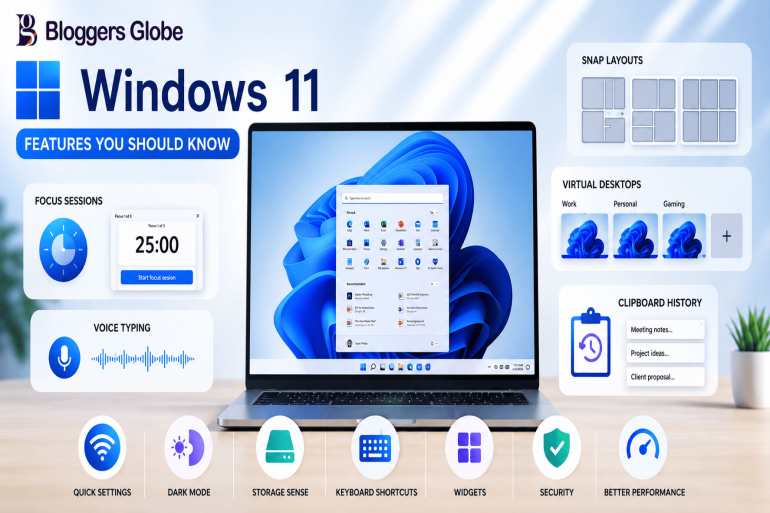
Snap Layouts make multitasking much easier. You can quickly arrange multiple apps on your screen without resizing them manually.
How to use it:
-
Hover your mouse over the Maximize button.
-
Choose a layout.
-
Select which apps you want in each section.
This feature is perfect if you work with browsers, Excel, Word, or multiple applications at the same time. If you're using your PC for college work, a good laptop can make multitasking even smoother. Check out these best laptops for students for guidance on choosing a suitable device.
2. Create Multiple Virtual Desktops
Virtual Desktops help keep your work separate.
For example:
-
One desktop for work
-
One for personal use
-
One for gaming
-
One for online meetings
Press Windows + Tab, then click New Desktop.
This keeps your screen less cluttered and helps you stay focused. You can combine virtual desktops with other productivity habits to create a more organized daily routine.
3. Stay Productive with Focus Sessions
Windows 11 includes Focus Sessions in the Clock app.
It helps you:
-
Reduce distractions
-
Set work timers
-
Take scheduled breaks
-
Track your productivity
If you struggle with concentration, this feature is worth trying. Small productivity improvements can also become part of a healthier daily routine, along with other simple lifestyle changes.
4. Enable Clipboard History
Normally, Windows remembers only the last item you copied.
Clipboard History lets you store multiple copied items.
Enable it by:
Settings → System → Clipboard → Clipboard History
Or simply press:
Windows + V
You'll never lose copied text again.
5. Type Faster with Voice Typing
Instead of typing, you can speak.
Press:
Windows + H
Start talking, and Windows converts your speech into text.
This is useful for:
-
Emails
-
Notes
-
Documents
-
Long articles
Students and professionals can also use AI tools to speed up research, writing, brainstorming, and other everyday tasks. Learn more about ChatGPT for students and professionals.
6. Customize Quick Settings
Quick Settings lets you control common options like:
-
Wi-Fi
-
Bluetooth
-
Brightness
-
Volume
-
Battery Saver
-
Airplane Mode
Click the network, battery, or volume icon in the taskbar.
You can add or remove shortcuts according to your needs.
Since Wi-Fi is one of the most frequently used Quick Settings options, it's also important to protect your home network. Follow these secure your home Wi-Fi tips to improve your network security.
7. Free Up Space with Storage Sense
Storage Sense automatically removes unnecessary files such as:
-
Temporary files
-
Recycle Bin contents
-
Old downloads (optional)
Enable it:
Settings → System → Storage → Storage Sense
This helps keep your PC running smoothly. Regularly removing unnecessary files can also be useful if you use your laptop for large assignments, software projects, photos, or videos.
8. Switch Between Dark and Light Mode
Dark Mode is easier on your eyes, especially at night.
To enable it:
Settings → Personalization → Colors
Choose:
-
Dark
-
Light
-
Custom
Many users prefer Dark Mode because it looks modern and reduces eye strain.
9. Useful Windows 11 Keyboard Shortcuts
Learning a few shortcuts can save a lot of time.
| Shortcut | Action |
|---|---|
| Windows + E | Open File Explorer |
| Windows + D | Show Desktop |
| Windows + L | Lock your PC |
| Windows + V | Clipboard History |
| Windows + H | Voice Typing |
| Windows + A | Open Quick Settings |
| Windows + I | Open Settings |
| Windows + Tab | Task View |
| Alt + Tab | Switch Apps |
| Windows + Shift + S | Take Screenshot |
Even remembering a few of these can improve your productivity. If you're frequently working away from a power outlet, you can also learn practical ways to increase Android battery life when using your phone as a companion device.
10. Use Widgets for Quick Information
Widgets provide instant access to useful information like:
-
Weather
-
News
-
Calendar
-
Sports scores
-
Stock updates
-
Traffic
Press:
Windows + W
Customize the widgets to match your interests.
11. Keep Your PC Secure
Windows 11 includes several built-in security features.
Make sure you:
-
Keep Windows updated
-
Enable Windows Security
-
Use Microsoft Defender
-
Turn on Firewall
-
Create strong passwords
-
Enable BitLocker (if available)
These simple steps help protect your computer from viruses and cyber threats. Security should also extend to the other devices connected to your network, which is why learning how to secure your home Wi-Fi can be useful.
Conclusion
Windows 11 offers many hidden features that can make your daily computer use faster, easier, and more enjoyable. Whether it's organizing your windows with Snap Layouts, using Voice Typing, enabling Clipboard History, or keeping your PC secure, these small tips can make a big difference.
Take a few minutes to explore these features, and you'll quickly notice improvements in your productivity and overall Windows experience.
As Microsoft continues to update Windows 11, more useful features are added regularly, so it's a good idea to keep your system updated and explore new tools whenever they're available.